



Animation Scales might sound like a hidden geek setting, but tweaking them is one of the easiest ways to make your Android phone feel instantly faster and more responsive. When apps seem to open in slow motion, or menus feel like they lag for a second before appearing, Animation Scales are usually part of the story. Adjusting them takes just a couple of minutes and can transform how “snappy” your device feels in daily use.
In this guide, you will learn what Animation Scales are, where to find them in Android Developer Settings, which values to use for the best experience, and when it might be better not to touch them at all. The goal is simple: use Animation Scales to make your phone feel smoother and faster without breaking anything or risking your data.
What are animation scales?
Animation Scales control how long Android spends showing visual transitions. They do not change the hardware speed of your device, but they change how fast things appear on screen. That difference is important: you are not overclocking your phone, you are simply shortening the time Android spends on “fancy” animations.
There are three main Animation Scales entries in Developer Options:
- Window animation scale – controls how quickly app windows open and close.
- Transition animation scale – controls screen-to-screen transitions, such as moving between menus or apps.
- Animator duration scale – controls the duration of various UI animations, like fading, sliding, or expanding elements.
By default, all three are set to 1x, which means “normal” speed. If you lower them (for example, to 0.5x), animations play twice as fast. If you turn them off, Android skips animations altogether and shows everything instantly.
Why tweak Animation Scales?
Modern Android devices, even midrange phones, are powerful enough for most tasks. However, default animations are designed to look smooth and pleasant, not necessarily to feel “instant.” Tuning Animation Scales lets you shift that balance toward responsiveness.
Here is what you gain when you tweak Animation Scales:
- Your phone feels much faster, even though the processor and RAM are unchanged.
- You spend less time waiting for screens to open and close.
- In some cases, you may see a small improvement in battery life, because the system spends less time rendering long animations.
Some people argue that Animation Scales do not “really” improve speed because they do not increase raw performance. Technically, that is true, but the improvement in perceived speed is very real. You care about how fast your phone feels, not just benchmarks.
How to Unlock Developer Options Safely
Animation Scales live inside the Developer Options menu. This menu is hidden by default, but unlocking it is safe as long as you only change what you understand.
To enable Developer Options:
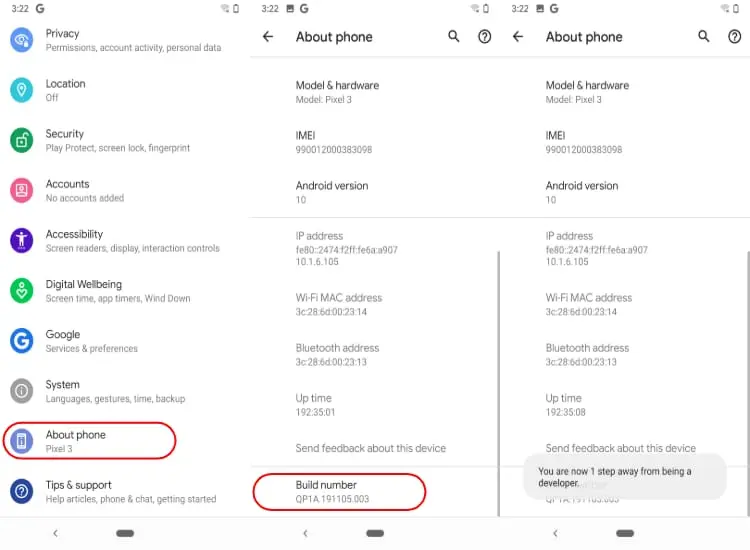
- Open Settings on your Android phone.
- Scroll down and tap About phone (or About device, depending on your brand).
- Find Build number.
- Tap Build number seven times in a row.
- You will see a message like “You are now a developer” or “Developer mode has been enabled”.
- Go back to the main Settings screen and look for Developer options (often under System).
If you ever want to disable Developer Options later, on many devices you can simply toggle them off at the top of the Developer Options screen. On some phones, you might need to clear settings or restart, but just changing Animation Scales is not dangerous.
Where to find animation scales in Developer Settings
Once Developer Options are enabled, finding Animation Scales is straightforward. The exact path might vary slightly between brands, but the general flow is similar:
- Open Settings.
- Go to System (if available) and then Developer options, or directly to Developer options if your phone shows it at the main level.
- Scroll down until you find:
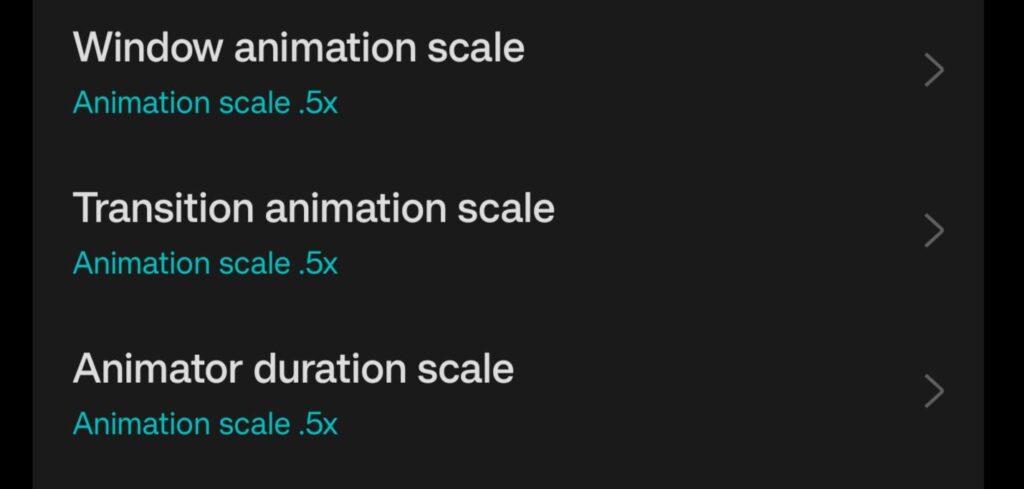
- Window animation scale
- Transition animation scale
- Animator duration scale
By default, all three entries are set to Animation scale 1x. This is the standard factory setting that most users never touch.
Best Animation Scales Settings for a Faster Feel
If you want your phone to feel noticeably faster without looking strange, the best starting point is to set all Animation Scales to 0.5x. This simple change cuts animation times in half while keeping everything visually smooth.
Recommended setup:
- Window animation scale: 0.5x
- Transition animation scale: 0.5x
- Animator duration scale: 0.5x
With this configuration, apps and menus still animate, but they appear much faster. Your home screen feels sharper, transitions between apps are more energetic, and the whole system seems more responsive. Many power users and tech reviewers use this exact 0.5x setup on their own devices.
What if you turn Animation Scales off completely?
You might be tempted to set everything to Animation off for maximum speed. This does make Android skip animations, so screens open immediately. However, there are trade-offs.
Here is what happens when Animation Scales are turned off:
- Transitions feel very abrupt, which some people find uncomfortable or “harsh”.
- Certain apps are designed with animations in mind, and without them, the interface can look glitchy or jarring.
- Navigating between screens can feel less intuitive because the movement of elements no longer tells your brain where you are going.
Turning Animation Scales off is not harmful, and some users love the ultra-instant feel. If you are curious, you can try it for a day or two. If it feels too aggressive, just go back to 0.5x or even 1x. Nothing permanent is changed.
Do animation scales affect battery life?
There is a common debate around this: do Animation Scales actually save battery? Technically, animations use the GPU and CPU to render visual effects. Shorter or fewer animations mean these components work for less time. So yes, there can be a small battery benefit.
That said, Animation Scales alone will not transform a weak battery into a monster. Think of them as part of a larger optimization strategy. When combined with other good practices—like using dark mode on OLED screens, limiting background apps, and enabling battery optimization—the impact adds up.
The main benefit of changing Animation Scales remains the improved feeling of speed and responsiveness. Any battery improvement is a nice bonus, not the primary reason to tweak them.
When you should leave animation scales at default
Even though Animation Scales are safe to adjust, there are cases where leaving them at 1x makes sense:
- If you create tutorials or educational videos and want viewers to see the default Android behavior.
- If the phone is used by someone who prefers slower, gentler transitions and may be confused by sudden changes.
- If you work as a UI/UX designer or tester and need to experience apps as most users will see them.
For personal daily use, however, most people benefit from at least trying the 0.5x setup. It is a simple way to make a phone feel more modern and responsive without installing anything or rooting the device.
Extra safe tweaks around animation scales
Once you are in Developer Options, it is easy to start exploring other settings. Some of them can be useful, but you should be cautious. A few extra options that are generally safe, especially when you stick to light tweaks:
- Disable absolute volume if you use Bluetooth headphones and want separate volume control for your phone and your audio device.
- Show taps and Pointer location can help when recording screen tutorials but are not needed day to day.
- Background process limit can be adjusted slightly if you want fewer apps staying in memory, but going too far can cause frequent reloads.
In contrast, options related to GPU debugging, strict mode, or forcing advanced graphics features should be left alone unless you know exactly what you are doing. Animation Scales are the simplest and safest way to get a noticeable improvement.
Step-by-step checklist
To make everything crystal clear, here is a quick checklist you can follow in a few minutes:
- Go to Settings → About phone.
- Tap Build number seven times to unlock Developer Options.
- Return to Settings → System → Developer options (or directly Developer options).
- Scroll down to:
- Window animation scale
- Transition animation scale
- Animator duration scale
- Change all three from 1x to 0.5x.
- Use your phone normally for a day and see how it feels.
- If you want it even snappier, test Animation off. If it feels too abrupt, go back to 0.5x.
These small adjustments can make your phone feel like it just got a software performance upgrade, even if the hardware is exactly the same.
Animation scales as a simple performance trick
Animation Scales in Android Developer Settings are a powerful but underrated tool. They do not require root, custom ROMs, or complex tweaks. You open a menu, change three values, and your phone suddenly feels more alive and responsive.
Instead of rushing to buy a new device when your phone feels slow, it is worth spending five minutes exploring Animation Scales. For many users, this single change is enough to restore a sense of speed and smoothness. It is a small tweak with a surprisingly big impact on how you experience your Android every day.