


Hell has turned to ice. Finally, you can use the same WhatsApp account on two different phones. It takes a little getting used to at first, but the important thing is that it works.
The ability to link your existing account to an Android tablet has just been available on WhatsApp (in beta). When setting up the app on your Android tablet if you have version 2.22.25.8 beta installed on both your Android phone and tablet, you should have the option to scan the QR code. This is essentially the same as using WhatsApp on Windows or Mac right now; while your phone continues to be the primary device, your secondary devices are somewhat independent and can continue to function even if your primary phone is offline.
This new Android tablet process works on phones too, but you have to briefly trick WhatsApp into thinking your second phone is a tablet.
1: Ensure your primary phone has WhatsApp v2.22.25.8 beta installed, signed in, and working. If you’re running an older version of the app, you can grab the APK file from APKMirror. (It’s a trusted source, don’t worry about malware.)
2: On your second phone, you start by enabling Developer Options in Android’s main settings. (Go to Settings > About phone and tap multiple times on Build number until you see a pop-up that says You are now a developer.)
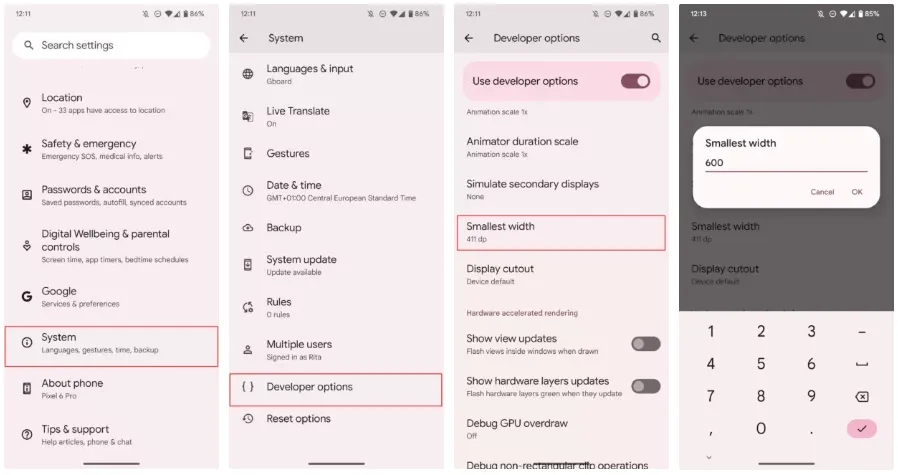
3: Stay on the second phone. Go to Settings > System > Developer options > Smallest width. You can use the search option if you don’t find it. Note down the current number (you’ll need it to revert later), then change it to 600. This will transform your phone’s interface into a tablet interface. Fonts and icons will be smaller, but we’ll return to the regular sizes, don’t worry. On my Pixel 6 Pro, which runs Android 13, I get the taskbar at the bottom for example. Fun stuff.
4: Now install WhatsApp v2.22.25.8 on this second phone. Again, you can do this from the Play Store if you’re enrolled in the beta or you can manually grab the same APK from APKMirror.
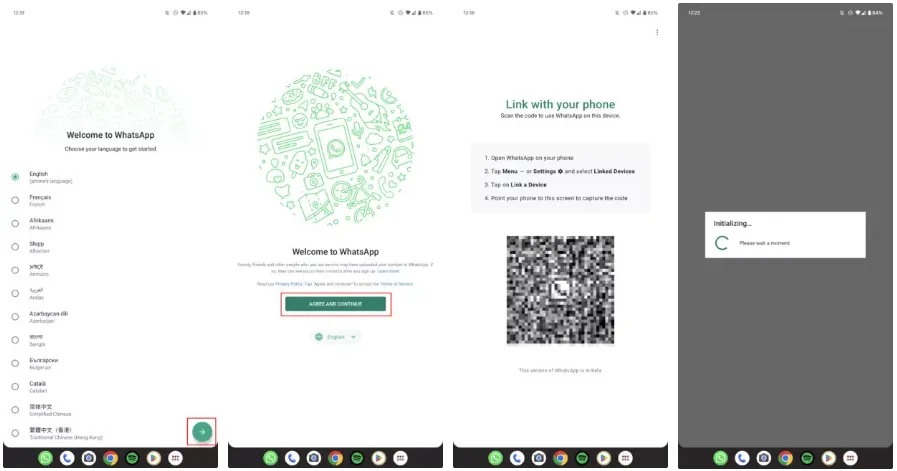
5: Open WhatsApp, choose the language, tap Agree and continue, and you should see the Link with your phone screen with your unique QR code. (If you see the page where you’re asked to sign in with a phone number, it means your phone wasn’t tricked into “becoming” a tablet. Try a higher number for the Smallest width setting. But 600 should do it, in theory.)
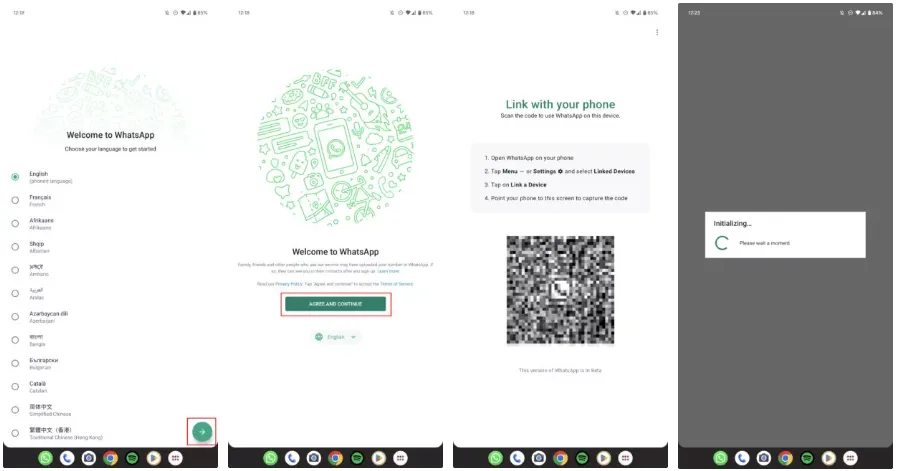
6: Go back to your main phone now. Open WhatsApp, tap the overflow ⋮ button on the top right, then Linked devices > Link a device. This will bring up the QR code scanner, so scan the code that was displayed on the second phone. And ta-da. Your second phone should reload WhatsApp with the same account as your primary device.
7: If you don’t like the tablet interface and small fonts on your second phone, you can repeat Step 3 and go back to the original Smallest width setting. WhatsApp will remain linked to your account.
There it is, then. Messages, calls, and pretty much everything else will be delivered to both smartphones. Both allow you to start calls and chats. A message is marked as read on one if you read it, and vice versa.
Your primary phone is still in charge and the one that has the ability to delink the second device if necessary. The desktop version of this needs to refresh every so often if you haven’t used it in a while, and I haven’t used it long enough to notice if there is any slowness or delay in grabbing messages like in that version. But it appears that’s not a problem right now.