
Google has gradually incorporated Gemini into all of its products and services, despite having a slower start to the AI space than competitors like OpenAI and Microsoft.
Gemini has been included into nearly every Google tool we use on a daily basis, including Google Docs, Gmail, Drive, and even Google Assistant for Android.
Gemini is an AI, and not everyone feels comfortable using it, even if it is excellent at many things and occasionally even replaces apps on our phones.
Some users are uncomfortable providing their data with Google in apps like Gmail or Google Photos, and not everyone wants Gemini in Google Workspace apps.
If you share my annoyance with Gemini, there is a way to get rid of Gemini from the majority of Google services and apps.
You can manually disable Gemini across many Google apps, but it’s not as easy as it would seem.
Remove Gemini tools from Google Photos

The Ask Photos feature in Google Photos was just introduced.
Recalling information from your images, like a sunset from a trip or even the license plate number of your automobile, looks like a helpful function.
Additionally, Ask Photos has grown to include image editing by allowing you to specify the adjustment you wish to make.
You might not want to give Google access to your photos or associated information, though.
Fortunately, you can simply turn off Google Photos’ Ask Photos and Gemini features directly from the Android app.
How to disable:
- Open the Google Photos app on your phone.
- Tap your profile icon in the upper-right corner and select Google Photos settings.
- Tap Preferences.
- Tap Gemini features and disable the Use Gemini in photos toggle.
Disable AI Overviews in Google Search
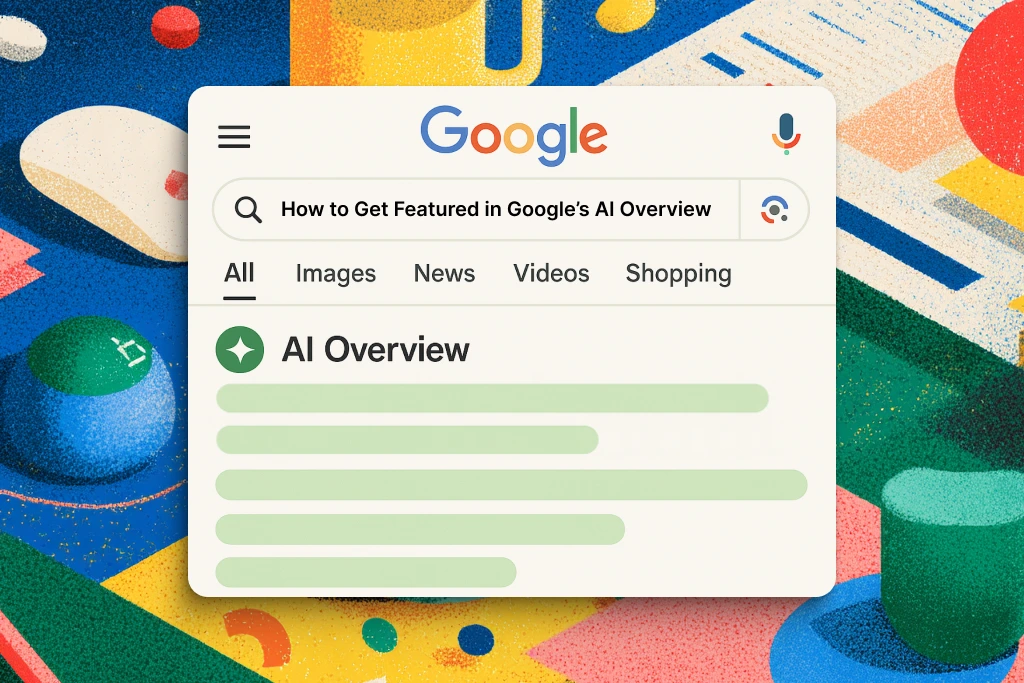
AI Overviews replaced Google Search in recent months.
Google Search has drastically altered in a short amount of time, despite the company’s efforts to improve them by adding more sources and more inline links to reliable websites.
There is a quick and easy method to restore the traditional Google Search experience if you prefer cleaner, more natural results without any AI features or AI Overviews obstructing what you are actually attempting to seek up.
Simply add “-ai” to the end of your Google search the next time you want to avoid all the AI garbage. This eliminates AI Overviews from taking over your screen and yields much cleaner and more conventional Google Search results.
The best part is that this method is compatible with all platforms, including cellphones and PCs.
Remove Gemini features inside Google Chrome
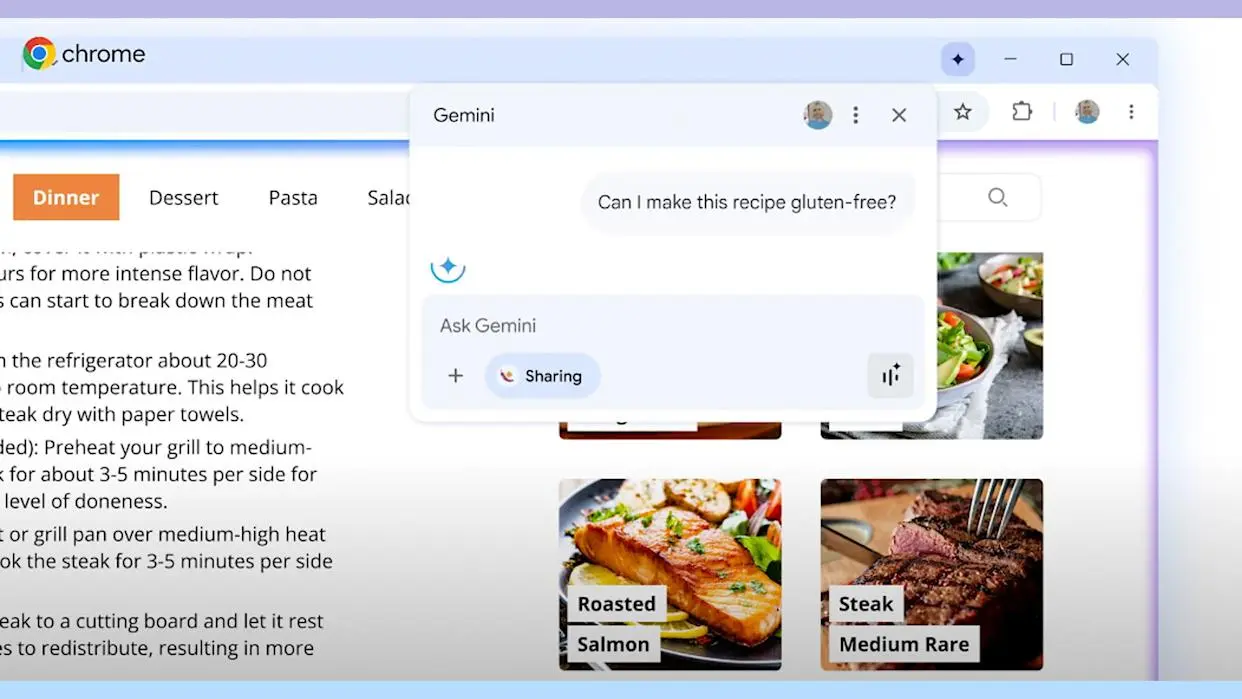
Chrome has been among Google’s services and apps with the slowest Gemini integration.
This is probably due to its enormous user base and Google’s desire to refine its AI features before releasing them in the browser.
However, Google Chrome’s Gemini has begun to roll out. Users in the US who use Chrome in English and are older than eighteen can access this function.
Gemini in Chrome allows you to use gen AI writing tools, search your surfing history in natural language, and ask questions of the chatbot from anywhere in the browser.
Here’s how to turn off Gemini on your computer, though, if you don’t want it to see your browsing history or Chrome data:
- Open Google Chrome.
- Click the three-dot menu in the upper-right corner and select Settings.
- On the left sidebar, select AI innovations.
- Select History search, powered by AI and Help me write and toggle them off.
Turn off Gemini in Drive, Docs, and other Workspace apps
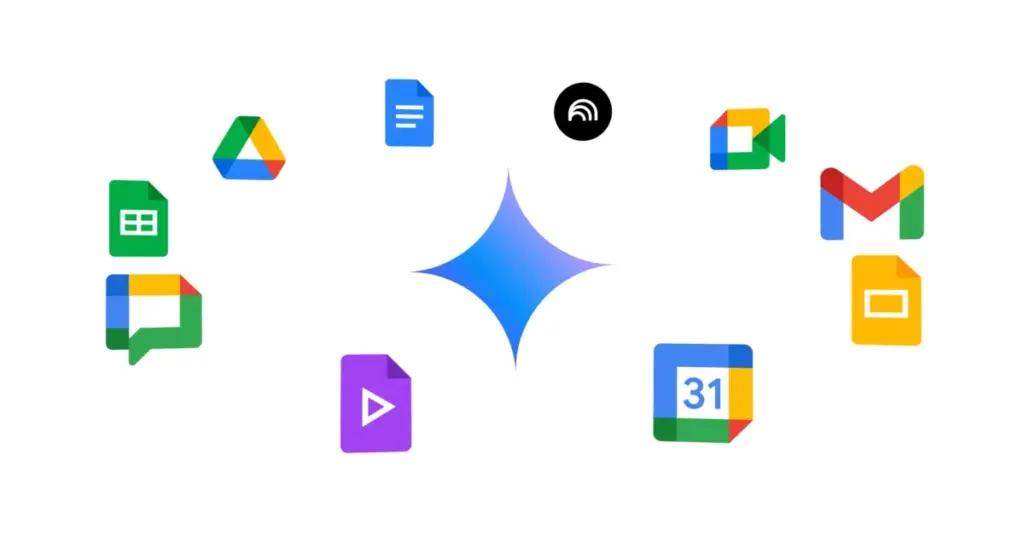
Integrating Gemini into its Workspace apps has been one of Google’s major initiatives.
Gemini connectivity is available through services like Gmail, Drive, Docs, and others, each of which has a unique feature set.
For instance, you may ask Gemini in Gmail to quickly scan your emails and extract pertinent information. It can assist you in comprehending the contents of a folder in Drive. It can assist you with writing and formatting information in Docs.
However, you can simply turn off all of the smart Gemini features in all of the Workspace apps at once if you don’t want Gemini to interfere with your workflow.
- Open the Google Drive desktop website (drive.google.com) and click the gear icon (Settings) in the upper-right corner.
- Select Privacy and then tap Manage Workspace smart feature settings.
- Toggle Smart features in Google Workspace to off.
It’s important to note that you can also turn off Smart features in other Google products, but doing so will also turn off Gemini in apps like Calendar and Maps.
Even simple AI-powered capabilities like suggested tickets and loyalty cards in the Wallet app, as well as suggestions and answers in the Gemini app, will no longer be available from Google.
You can turn off this feature if you wish to entirely eliminate Gemini across all Google apps. If not, you can proceed by just turning off the first option.