
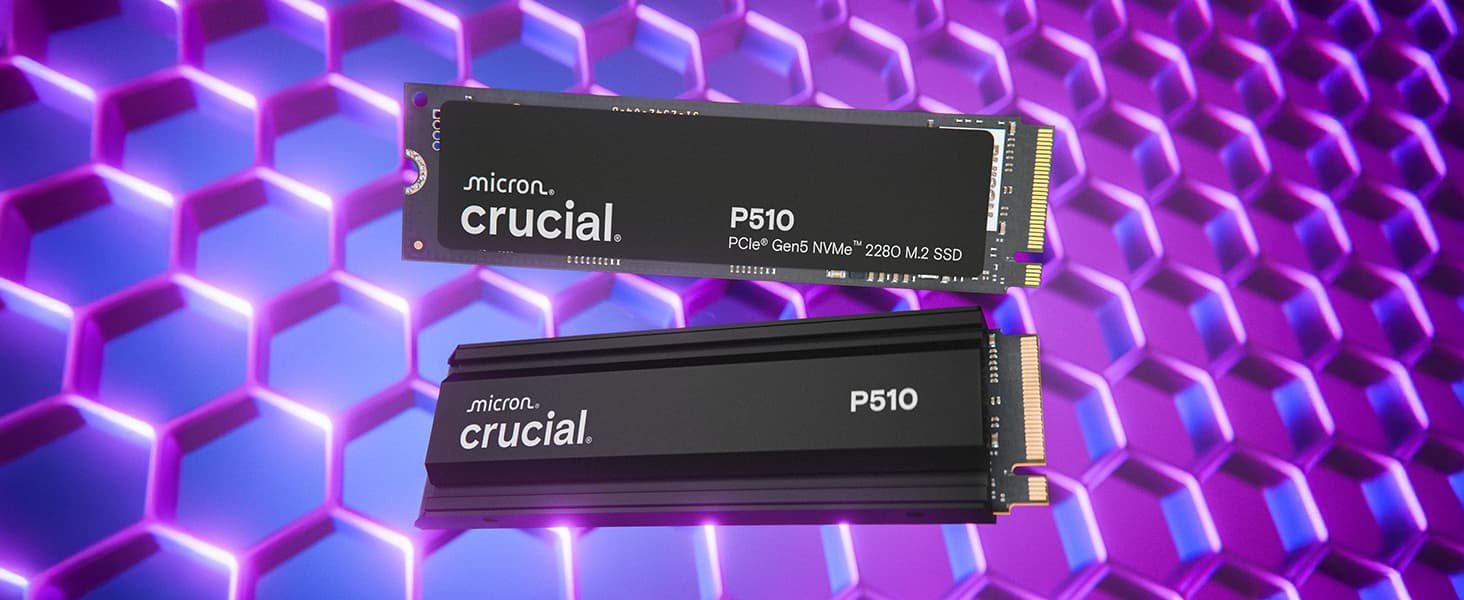
Cold booting a device or waking it from sleep used to take anywhere from 30 seconds to over a minute, and moving a terabyte of data could take up to ten hours. Both processes are much faster today, largely because of solid-state drives (SSDs). The shift from HDDs to SSDs did not happen overnight, which means many recommendations for HDDs are still applied to SSDs today, even though the two are fundamentally different technologies.
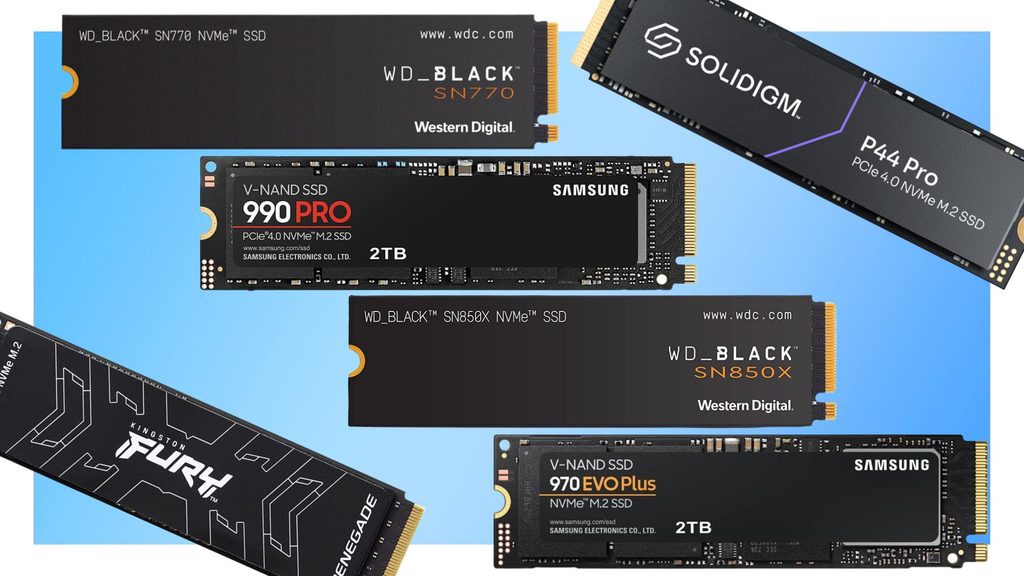
Many common SSD myths are relatively harmless; protecting a drive against power outages and blackouts causes no issues. However, some misconceptions can lead to bad purchases, such as paying more for an SSD where a cheaper HDD works just as well, or accidentally getting an M.2 SATA SSD instead of an NVMe.
Some common SSD misconceptions can also seriously harm your drives, such as removing the sticker on an NVMe or repeatedly defragmenting an SSD. Here are five of the most common SSD myths, explaining where they stem from, why you should not believe them, and what you risk by continuing to follow them.
M.2 drives are always NVMe
There are several differences between NVMe SSDs and a typical SATA SSD or HDD. NVMe drives are faster, perform better, and look different. Many people assume the small M.2 “gumstick” form factor is exclusive to NVMe drives, but an SSD being M.2 does not necessarily mean that it is an NVMe.
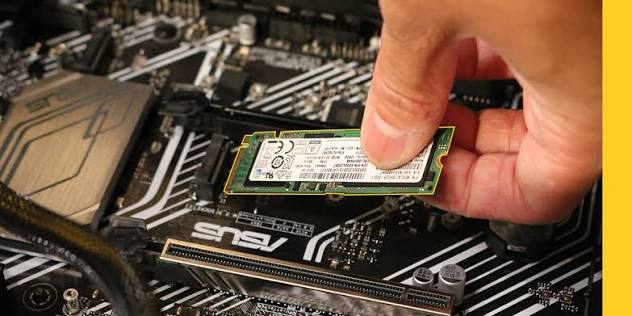
SATA SSD read speeds max out at about 550 MBps, while a PCIe 5.0 NVMe can reach nearly 15,000 MBps. Furthermore, an NVMe slot on a motherboard may not support a SATA drive. At best, an M.2 SATA drive provides just above 3% of that performance, though in most cases you run into compatibility issues and end up with an unusable drive. Most major SSD manufacturers have steadily moved away from producing M.2 SATA drives due to low demand. Even so, they remain on the market and are typically more expensive than NVMe drives of similar capacity, making it important to distinguish between them.
Differentiating between an M.2 SATA SSD and an M.2 NVMe SSD is as easy as looking at the specifications or the label on the drive itself. If you are unsure, look at the key notches (the gaps between the golden pins): M.2 SATA SSDs use a B+M key (two notches), while NVMe SSDs use an M key (one notch).
SSDs make HDDs obsolete
SSDs are a major improvement over HDDs, which is why many assume that they make HDDs an obsolete technology. This is not an unfair assumption: SSDs are significantly faster, less prone to failure from mechanical shock, and generally more reliable. However, manufacturers continue to produce and sell HDDs because they remain a viable way of storing data.
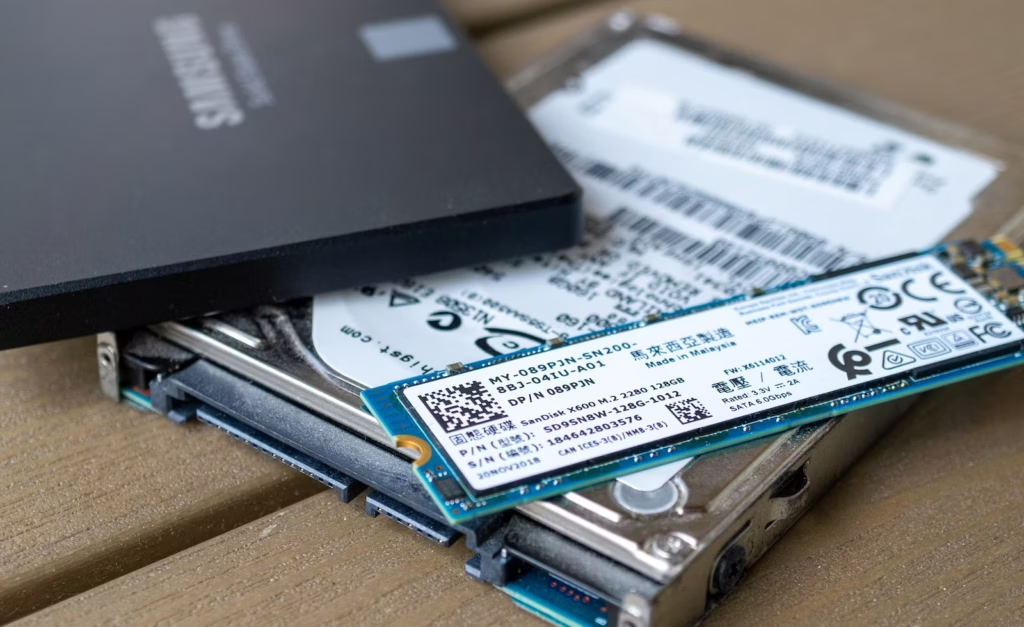
One of the biggest drawbacks to SSDs is that they are significantly more expensive than other methods of storage. For instance, a Seagate 1TB external HDD costs $119, while a 1TB external SSD costs $212, and an HDD can be found even cheaper on the secondary market. This price difference makes sense if you can leverage an SSD’s higher speeds for faster loading times, but you get no extra value if all you are doing is storing files long-term.
HDDs also provide better longevity and more reliable storage, retaining data better when put in a cupboard or storage for years. With an SSD, data is stored electronically, and electrons slowly lose charge. With time, this can lead to degradation and loss of data in the form of bit rot. While HDDs are vulnerable to mechanical failure and environmental wear, they are much more likely to keep data for years without active maintenance.
You need to defrag your SSD
Defragmentation used to be a common way to improve drive performance, which is why people continue to defrag their drives. However, the method only applies to HDDs, and defragging SSDs provides zero benefit. On the contrary, it can end up reducing your SSD’s lifespan.
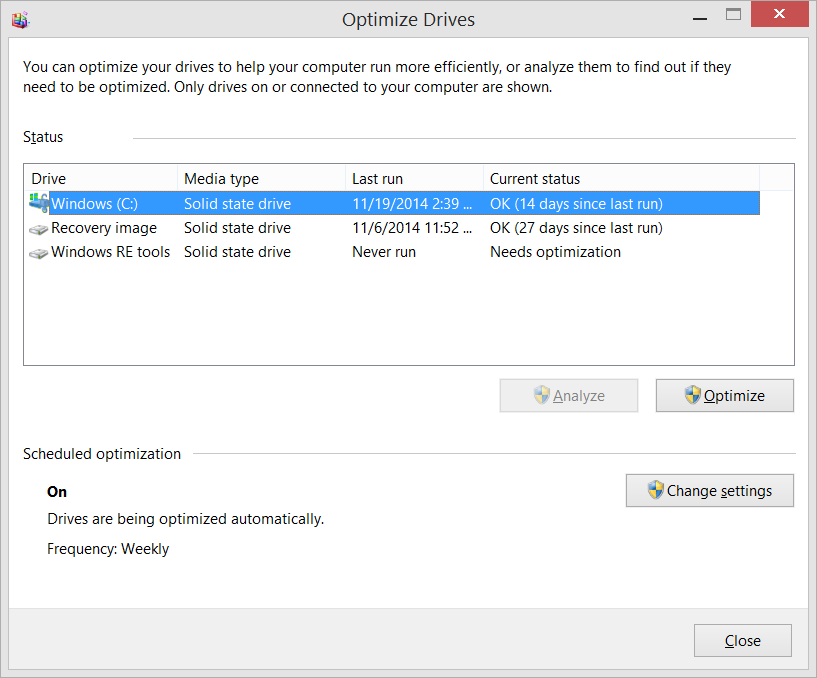
In an HDD, a mechanical read head physically moves to “fetch” data written on specific parts of the disk. As you erase, overwrite, and add new data, program files can become fragmented across different sectors on the drive far away from each other, slowing performance. Defragmentation fixes this by repositioning these fragments next to each other, making files whole again. Data retrieval works differently in an SSD because it is done electronically without physical, moving parts, which is how SSDs manage to be so much faster than HDDs.
Fragments of a program near each other and those farther away require the same amount of time to fetch, making defragmentation unnecessary. Additionally, because defragmenting rewrites data, it can shorten an SSD’s lifespan by using up large amounts of its TBW (terabytes written) capacity—the total amount of data you can write on an SSD before it dies. Avoiding defragmentation can increase your SSD’s lifespan.
You should remove the sticker on an NVMe drive
Cooling is an integral part of any PC setup. GPUs and PSUs come with built-in cooling fans and heatsinks, while a CPU requires a dedicated air cooler or liquid cooling rig. Because an NVMe drive does not come with instructions requiring thermal paste or other cooling solutions, many users become concerned over how to manage its heat.
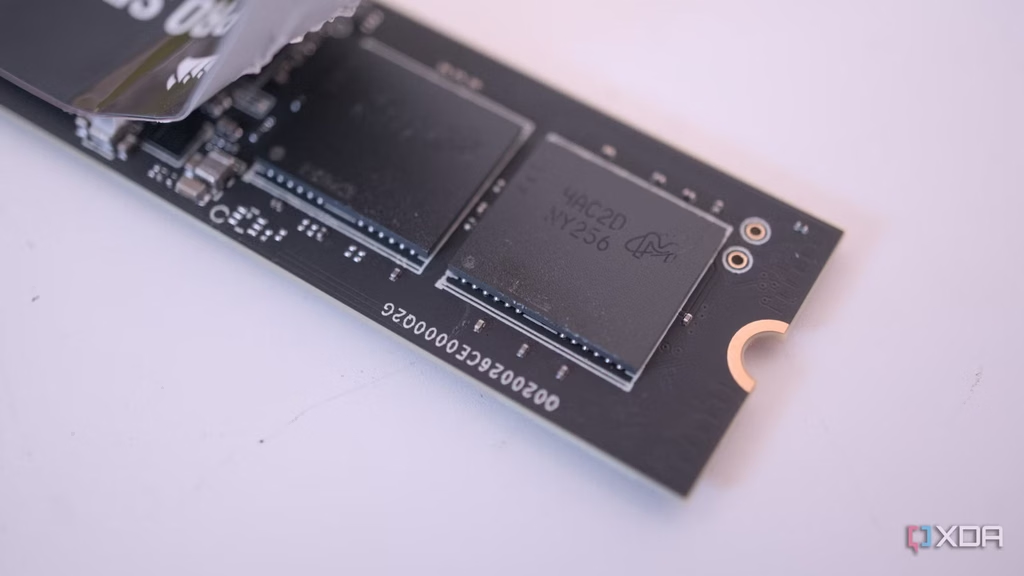
If you have never used an NVMe drive before, your first instinct upon seeing one may be removing the manufacturer label, as stickers typically interfere with passive cooling and trap heat. However, these particular stickers are specifically designed to be non-insulating and are not meant to be peeled off. Typical stickers are primarily made of paper, plastic, or vinyl, all of which are insulators. The label on an NVMe contains a thin metallic layer that is thermally conductive. Instead of trapping heat, it aids the drive’s ability to cool itself.
Removing the sticker on an NVMe is a bad idea for several reasons. It makes the drive more prone to heat-related issues instead of solving them, and it can void manufacturer warranties. Furthermore, you risk damaging the fragile semiconductor chips underneath the sticker by forcing it off, which can render the entire drive unusable.
Blackouts and power outages damage SSDs
You have likely seen cases of someone powering a PC on after a sudden power outage only to see that the drive has become compromised, its data has been erased, and the OS is refusing to work as intended. It is natural to worry about your own setup from seeing this happen to others. However, an SSD is much more resilient to wear and less prone to failure from power outages.
When an HDD suddenly loses power, the moving read-and-write head can abruptly stop instead of safely parking, which can make it crash into the platter. This is generally what causes a drive to become damaged and suffer from bad sectors. An SSD has no moving parts, and losing power simply means it shuts down. Power outages rarely ever pose a risk of physically damaging an SSD.
A power outage can still be detrimental, even if it does not outright damage your SSD. For instance, if your desktop computer shuts down while the SSD is writing data, the data being written can become corrupted. This can mean anything from losing a document or corrupting an app cache to rendering the OS unbootable and in need of a complete reinstall. A UPS remains worth opting for if you are in a region prone to power outages.
Editorial Ethics & Disclosure: Our evaluations, reviews, and reporting are conducted independently. Learn more about our editorial ethics and affiliate disclosures.

About Robert Haba
Robert Haba covers technology, hardware architectures, and consumer platforms for Gadgetts.
Related Coverage
 Laptops & PCs
5 ways to keep your laptop cool on a budget
Learn how to keep a laptop cool on a budget with passive elevation, safer surfaces, scheduled cleaning, and simple operating system adjustments.
 Laptops & PCs
Apple explores an OLED iMac, but a release remains years away
Apple is exploring an OLED iMac, according to Mark Gurman, though a release could be years away as desktop panels remain costly.
 Laptops & PCs
Apple claims Safari battery life beats Chrome by five hours on MacBooks
Apple claims Safari battery life delivers up to five extra hours of video streaming on MacBook Air laptops compared to Google Chrome.