
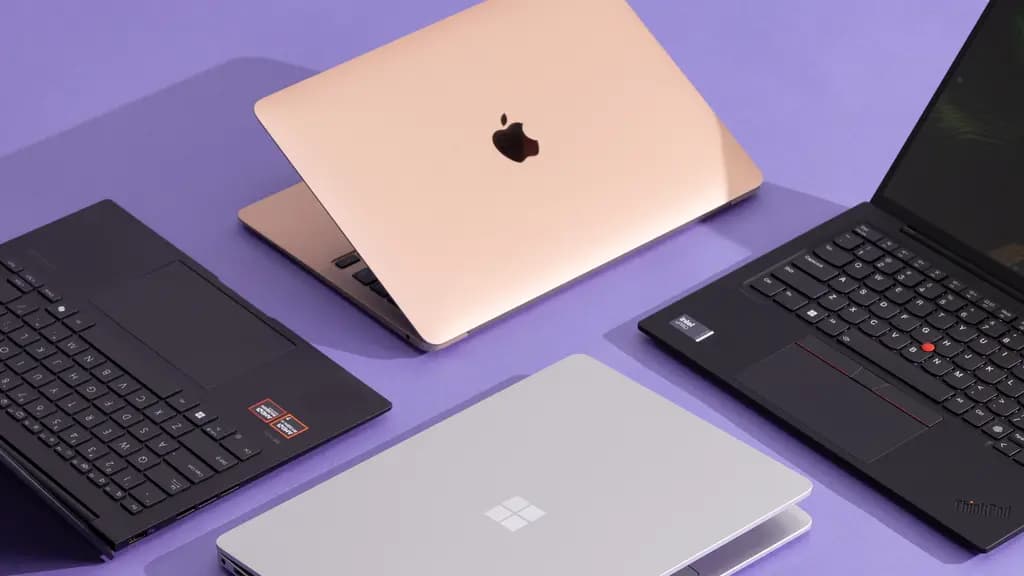
A laptop that runs hot disrupts productivity and enjoyment. Inconsistent performance, component damage, and memory errors can signal that a laptop is overheating, but several methods can reduce the issue. While cooling pads are an option, cheaper alternatives are available for those on a budget.
Proper ventilation is essential for optimal performance, which is why laying a laptop flat on a desk or using it in bed or on other soft surfaces can restrict airflow. The surrounding household environment also affects temperatures, and users can adjust specific software settings to manage heat. Many reasons a desktop PC overheats also apply to laptops. While replacing a laptop’s thermal paste is another way to manage heat, simple low-cost steps and budget-friendly accessories can keep a machine cool.
Keep your laptop elevated
How a laptop sits on a desk is one of the first things to examine when managing heat. For laptops, heat is released through vents on the bottom of the chassis, and accidentally blocking these vents traps extra heat. Because the device pulls air in from underneath and pushes hot air out the rear or sides, elevating it allows heat to escape. Lying flat against a surface leaves little space for air to enter. Aiming for passive elevation helps drop the laptop’s temperature by a few degrees.
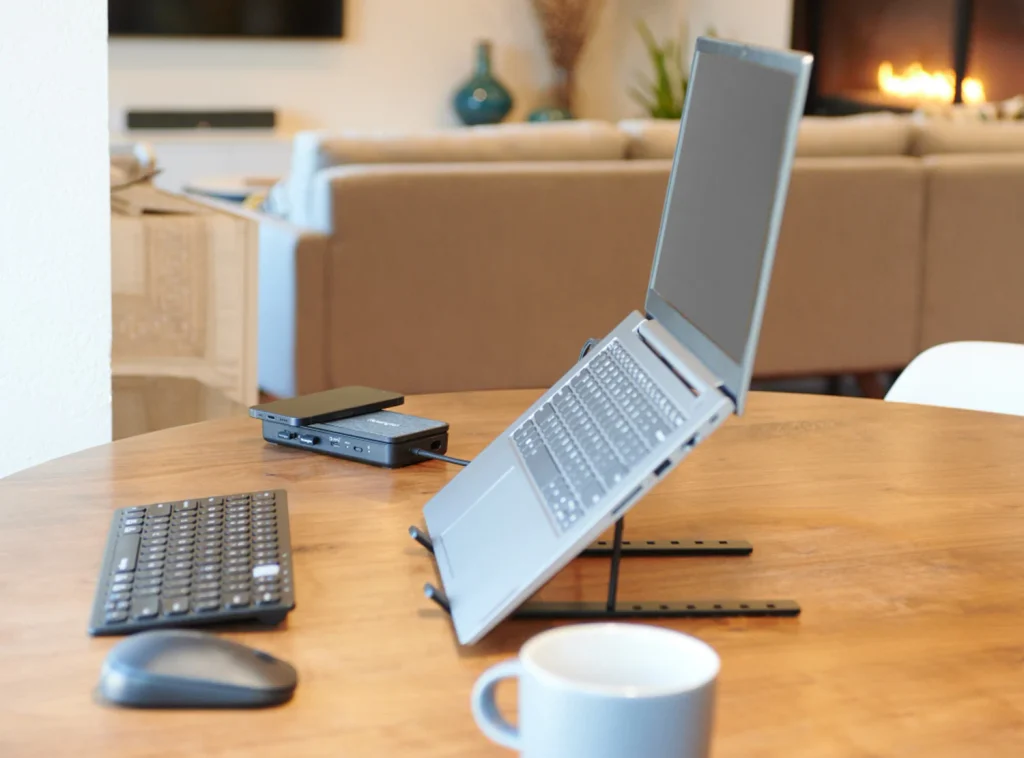
A good laptop stand can achieve this while supporting productivity, and inexpensive models can typically be found online. Be sure to check reviews to see what actual customers say about a product. To avoid spending money, household items can provide DIY elevation. For example, place bottle caps at the corners of the laptop or use books of equal thickness, ensuring nothing blocks the airways.
Be aware of your surfaces
How a laptop sits on a surface and the type of surface beneath it directly affect heat dissipation. Soft surfaces easily block air from flowing through the device. While using a laptop in bed is convenient, long periods of heat exposure can damage internal components. Without consistent temperature monitoring, users may not realize the full extent of issues caused by soft surfaces, which are also often uneven.

Keep laptops away from soft materials, especially while charging, and avoid covering the machine with cloth materials during charging. Avoid resting the laptop directly on your lap for the same reason. Limiting or eliminating time on soft surfaces is the cheapest preventative step. For working in bed, dedicated bed laptop stands cost about the same as desk stands, while a very large book or cutting board can also serve as an effective flat barrier.
Environment matters
Laptops generally do not handle extreme temperatures well, even indoors. Keeping the laptop out of direct sunlight and away from indoor heating sources helps lower heat. When not in use, store the device in a cool, dry room, and provide periodic breaks during long, demanding tasks.
During hotter months, avoid leaving the laptop plugged in continuously. Leaving a laptop charging generates unnecessary heat and can harm the battery. Avoid placing other devices on top of or beneath the laptop, as external equipment generates heat and creates additional issues.
Laptops often include built-in monitoring tools. In Windows Task Manager, users can monitor CPU and GPU temperatures, while Mac Activity Monitor displays CPU and GPU usage. Laptop cases can also increase internal temperatures, so verify that the case does not block vents. Finally, maintaining good room ventilation helps keep temperatures down, even if extreme weather makes it challenging.
Keep the laptop clean
Cleanliness directly impacts heat dissipation. When a laptop relies on a cooling fan, dust and debris can get drawn into the system. Dust and dirt similarly impact desktop PCs, where the standard remedy is a deep clean. Cleaning a laptop removes dust or dirt that may prevent heat from escaping.
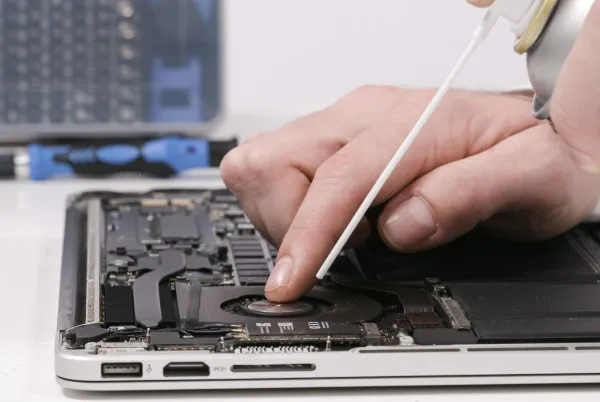
A soft brush is acceptable for cleaning laptop vents, while a can of compressed air can also be effective. Avoid blowing dust deeper into the chassis. Inexperienced users should not open the laptop case, as this can void the warranty; consult a specialist if the machine is especially dirty.
Check the laptop manual for manufacturer cleaning instructions. Specialty tools are available for regular cleaning. As a rule of thumb, clean the laptop at least once a quarter, though more frequent cleaning may be appropriate depending on usage.
Optimize your software for a cooler experience
Operating system adjustments can significantly lower temperatures. One fast way to cool a laptop is closing unused background applications, which relieves pressure on a CPU working overtime. In Windows, press Ctrl + Shift + Esc to open Task Manager, navigate to the Processes tab, select an application, and click End task.

Software updates can improve performance, and lowering screen brightness helps reduce excessive heat. Periodically check for system updates, and test available power modes. In Windows 11, navigate to Start > Settings > System > Power & battery to access Power mode options: Best power efficiency (which helps battery life), Balanced (which balances battery and performance), and Best performance.
Certain manufacturers also provide proprietary cooling utilities. Dell computers can use Dell Optimizer or Dell Power Manager for thermal management, while HP uses HP CoolSense or HP Command Center for heat mitigation; consult the manual for details. Finally, issues associated with leaving a desktop PC running constantly also apply to laptops.
Editorial Ethics & Disclosure: Our evaluations, reviews, and reporting are conducted independently. Learn more about our editorial ethics and affiliate disclosures.

About Andreea Magureanu
Andreea Magureanu is a teacher by day and a tech enthusiast by passion. In her spare time, she writes about gadgets, smart devices, and everyday tech for Gadgetts - bringing a refreshingly practical, non-jargon perspective that makes technology accessible to everyone.
Related Coverage
 Laptops & PCs
5 Common SSD Myths You Should Stop Believing
Solid-state drives operate differently from HDDs. Learn the truth behind five common myths about M.2 drives, HDD storage, defragging, and stickers.
 Laptops & PCs
Apple explores an OLED iMac, but a release remains years away
Apple is exploring an OLED iMac, according to Mark Gurman, though a release could be years away as desktop panels remain costly.
 Laptops & PCs
Apple claims Safari battery life beats Chrome by five hours on MacBooks
Apple claims Safari battery life delivers up to five extra hours of video streaming on MacBook Air laptops compared to Google Chrome.