
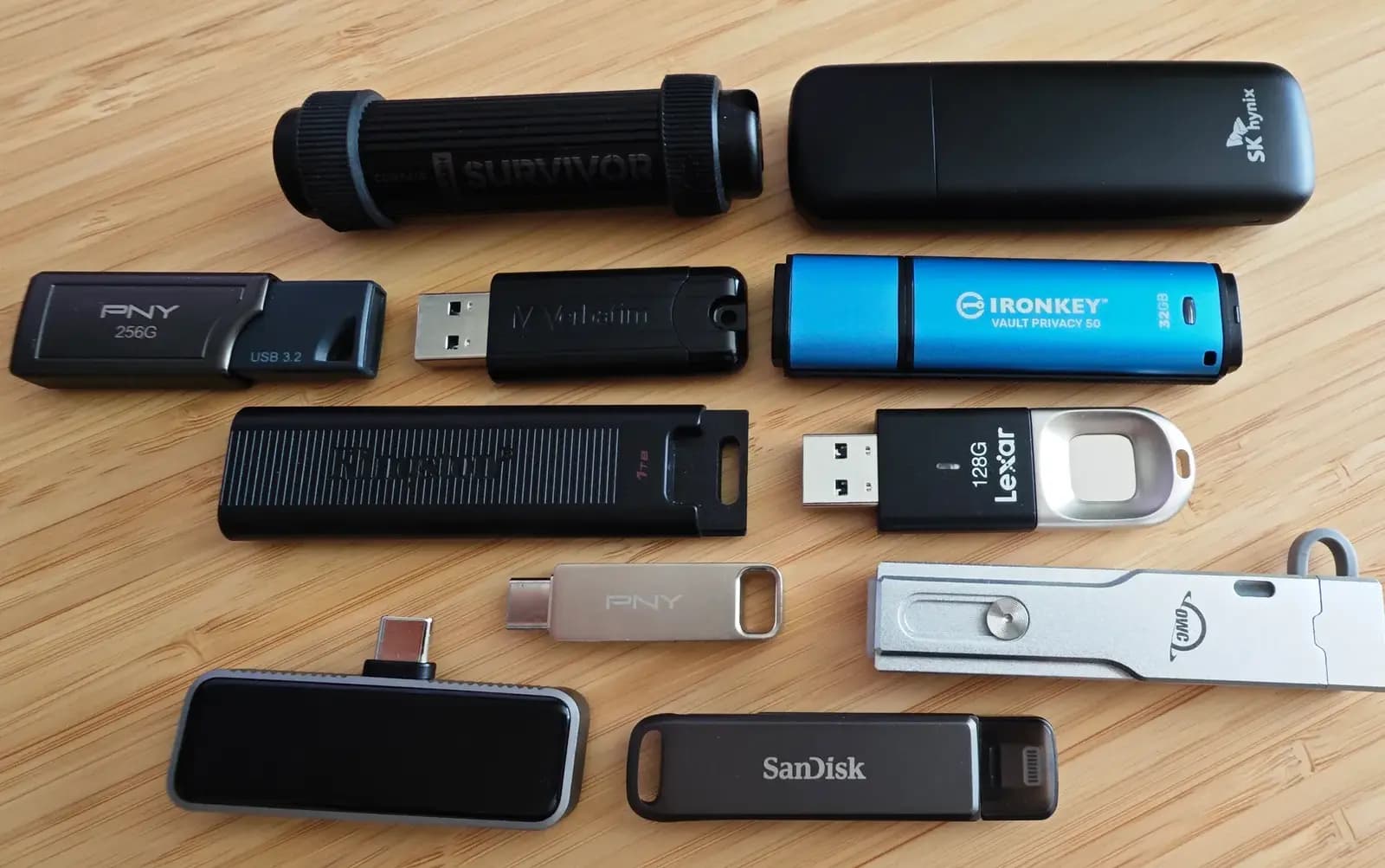
Operating systems such as Windows rely directly on an internal boot device, typically the hard drive where core system files reside. When a computer fails to boot or encounters corrupted system files, starting from an external source provides a practical alternative. A flash drive configured as a bootable USB drive allows you to bypass the internal storage and get the computer working again during an emergency. Keeping a compact, keychain-friendly USB drive handy provides an always-ready recovery option. Basic flash drives suitable for this task often sell for around $10.
Drive capacity and hardware choices
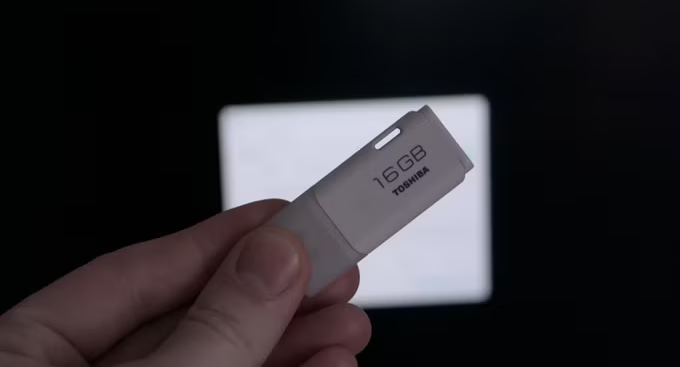
Flash drives, including models that attach to or serve as a keychain, vary in price from around $10 to much higher sums depending on capacity and read-write speed. For an emergency startup drive, cheaper variants are entirely adequate. While portable external hard drives can also boot a computer, small thumb drives are more convenient to carry in a pocket or keep on your person. A functional rescue drive requires a minimum of 8 gigabytes (GB) of storage space. However, the ideal capacity ranges between 16 GB and 32 GB, providing extra room for useful repair software alongside the core operating system installer.
Configuring a flash drive manually requires very little effort, and any standard USB drive can be repurposed to create a bootable backup. Users who prefer to avoid doing that work themselves can purchase a pre-made bootable drive on Amazon for $21. If you decide to prepare your own storage media on a drive of your choosing, the initial step involves acquiring a suitable flash drive or taking an existing unit and formatting it.
Creating a bootable drive with Ventoy
There are several different ways to build an emergency backup drive, allowing you to choose a method that best fits your technical needs. For instance, you can use utility software like Rufus to create a bootable installation and backup drive, though you must supply a clean Windows image (ISO) matching the operating system version you intend to support. Windows 11 also includes its own dedicated media creation tool for generating installer media. Among the available options, using an open-source application called Ventoy stands out as one of the easiest methods to handle the entire process.
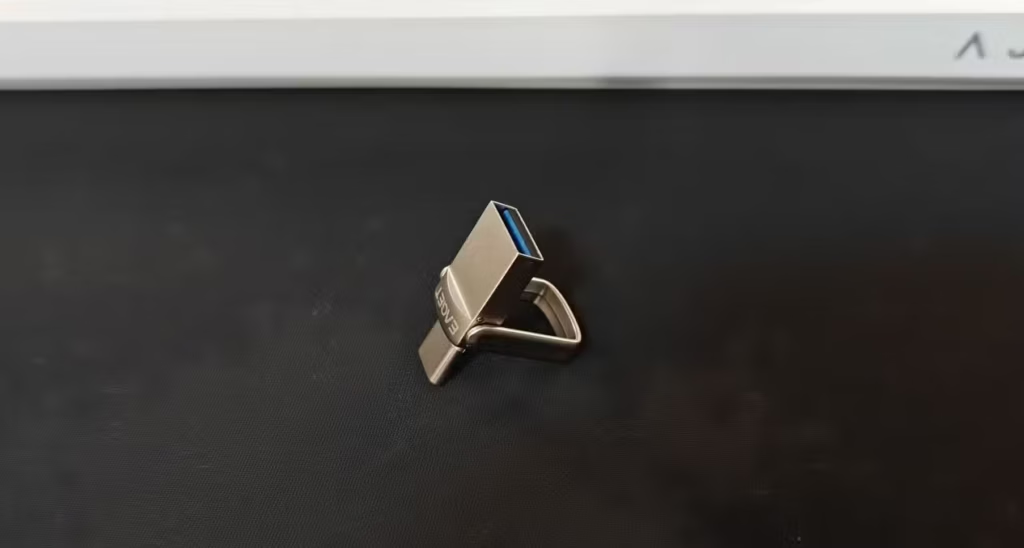
To begin, download Ventoy directly from its official website. Insert your flash drive into the computer running the setup, launch the Ventoy software, choose the connected USB drive from the interface, and select the install option. The program will generally rename the flash drive to Ventoy to indicate that the application is loaded on it. After this installation step, use your file manager to copy the desired operating system ISO files onto the USB storage space. Ventoy handles Windows 10 and Windows 11 disk images, as well as Linux distributions such as Zorin OS and Bazzite. Clean system images are typically available on the developers’ official websites, such as Microsoft providing Windows 11 disk images for licensed users.
Once the flash drive has Ventoy installed and you have copied your chosen ISO files over, testing or deploying the drive is straightforward. Plug the USB drive into the computer you need to recover, turn on the power, and open the hardware boot menu to select your backup USB device. When loaded correctly, Ventoy displays a clear text menu listing every ISO file stored on the drive, allowing you to select and run whichever operating system installer you need. However, storing an operating system image is only the initial part of preparing a comprehensive emergency recovery drive.
Storing portable repair tools and applications
Opting for a 16 GB or larger drive provides significantly more storage space than a single operating system image consumes. This extra capacity allows you to store portable applications and emergency repair utilities directly on the USB drive so they remain permanently available. Following a fresh operating system installation, computers lack personal software, forcing users to locate and download every required program before getting back to work. If a system failure destroys local data, having essential repair tools preloaded on the flash drive ensures you have immediate access to software alongside your operating system backup wherever you take the drive.
Portable versions of applications open and operate directly from their primary directory, bundling all required components so they execute without a standard system installation. This architecture allows you to run tools from a USB or external drive on any computer without installing extra software. Placing portable utilities on your drive creates a practical emergency backup suite. Good program choices include security tools, an updated web browser such as Chrome, an archiving utility like 7-Zip, and a data recovery application like Recuva. You can also include download managers, open-source media players, and any other diagnostic utilities you might require.
Editorial Ethics & Disclosure: Our evaluations, reviews, and reporting are conducted independently. Learn more about our editorial ethics and affiliate disclosures.

About Robert Haba
Robert Haba covers technology, hardware architectures, and consumer platforms for Gadgetts.
Related Coverage
 Laptops & PCs
Asus TUF Gaming A15 2026 arrives with Ryzen 7 170 and RTX 3050
The Asus TUF Gaming A15 2026 lists for ₹97,990 on Amazon with an AMD Ryzen 7 170 chip, RTX 3050 graphics, 16 GB DDR5 RAM, and a 144 Hz FHD display.
 Laptops & PCs
HarmonyOS PCs Get a Major Boost as Linux Tools Now Run Natively
Thanks to a new tool, Huawei announced today that HarmonyOS laptops may now run Linux-based programs and tools natively. This is significant news for its in-house computer operating system since it gives developers more options. Huawei launched the Converged Development Engine in the HarmonyOS PC AppGallery on April 1. The 1.0.0.17 version is in the
 Laptops & PCs
End of an era: Linux begins removing Intel 486 support after 37 years
In terms of current Linux, it could be time to retire your 37-year-old Intel 486 system because OS kernel developers seem to have begun to remove support for this venerable CPU. According to Phoronix, fixes intended for the Linux 7.1 kernel appear to have verified the change. In order to get a few more years